Member InfoHub – How to APPLY PAYMENT PROFILE TO DUES INVOICE
You must have the appropriate admin permissions to view agency invoices, membership billing info and to create payment profiles in the South Carolina Member InfoHub. Contact our Director of Member Services if you need to verify your access settings.
HOW TO APPLY PAYMENT PROFILE TO DUES RENEWAL INVOICE
View instructions on how to login to member InfoHub. Your Big I member login must have admin permissions to view agency billing information.
View instructions on how to set up a new payment profile if you haven’t already done this.
If you want to apply an existing payment profile to a dues renewal invoice that has already been generated for the upcoming year, find the open invoice in the Open Invoices list in the “Make a Payment” tab of the “My Billing Info” section.
Select “Pay Now” from the blue “Actions” button and a payment window will open.
Make sure that the correct invoice and Payment Contact is selected and select the Payment Profile you want to use from the Stored Payment Profiles list.
Verify/Update the Payment Date and Amount and whether you want to be emailed a Payment Receipt.
Finish the transaction by clicking the Blue “Pay” button.
HOW TO APPLY PAYMENT PROFILE TO FUTURE DUES RENEWAL INVOICES
View instructions on how to login to member InfoHub. Your Big I member login must have admin permissions to view agency billing information.
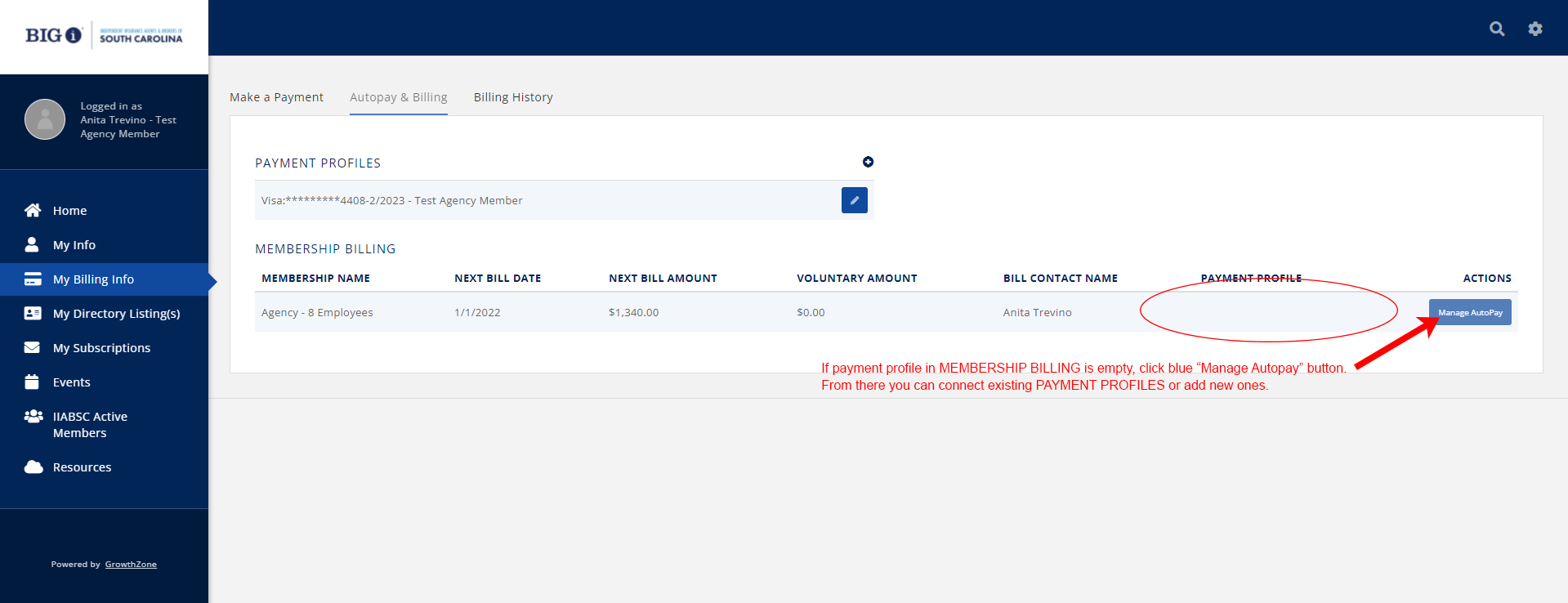
If you want to mark an existing payment profile to pay future member dues payments, access membership info from the “Autopay & Billing” tab of the “My Billing Info” section and click the blue “Manage Autopay” button next to your membership information in the Membership Billing list. Contact Director of Member Services if Manage Autopay field has no Action button with it.
Select the Payment Profile from the list and select “All membership items” option. Next Bill Date will be listed in the Membership Items.
Save and apply by clicking the blue “Done” button.