Member InfoHub – How to Access Membership Info
You must have the appropriate admin permissions to view agency invoices, membership billing info and to create payment profiles in the South Carolina Member InfoHub. Contact our Director of Member Services if you need to verify your access settings.
VIEW PAYMENT POLICIES
If a member does not renew membership and/or submit their correct dues payment by the deadline and wishes to reinstate membership after that time, there will be a $35 late fee/reinstatement fee added to their dues total to be paid in addition to dues prior to reinstatement.
By submitting a membership application or renewal, members are committing to ongoing membership with IIABSC until you submit a written cancellation notification and at a minimum through December 31 of that same calendar year. This applies to both monthly and annual dues payers. In the case of cancellation or resignation mid-year, members acknowledge that there will be no refund of member dues. For monthly payers, the remainder of the dues will be charged upon notice of cancellation and the member will have access to benefits for the remainder of the calendar year at which time the membership will non-renew. Any requests for resignations or policy exceptions should be submitted in writing and will be determined on a case-by-case basis.
By paying your dues, members are agreeing to accept and adhere to IIABSC membership dues policies and the Trusted Choice License Agreement and Pledge of Performance (trustedchoice.independentagent.com/tc-license-agreement). You can opt out by emailing trustedchoice@iiaba.net.
By setting up an automatic payment account, members authorize Independent Insurance Agents & Brokers of South Carolina, Inc. to initiate charges to their stored payment profile. To correct a transaction error, Independent Insurance Agents & Brokers of South Carolina, Inc. is authorized to initiate an adjusting debit or credit entry to the depository account. They are also declaring that they are an authorized signer for the account.
You may notice a slight increase in dues amounts across all agency membership levels this year. IIABSC remains committed to analyzing our programs and services each year to ensure we are offering as much value as possible to our members. This 5% increase simply serves to cover the cost increases over time for many of your key benefit offerings. We look forward to continuing to provide you with the highest quality of service.
HOW TO ACCESS YOUR AGENCY’S DUES RENEWAL INVOICE
- Login to member InfoHub. Your Big I member login must have admin permissions to view agency billing information.
- Open dues renewal invoices will be available in the Open Invoices list in the My Billing Info section on lefthand side, on the Make a Payment tab. Invoices are ordered by invoice date with most recent invoices at the top.
- To download your dues renewal invoice, locate it in the Open Invoices list and select “Download Invoice” from the blue “Actions” button on right side of invoice entry.
You can pay the invoice online from URL links on the invoice, or you can pay the invoice directly in InfoHub by selecting “Pay Now” from the blue “Actions” button on right side of each invoice entry. Be sure to check boxes to save card if you want to set up a payment profile for dues billing.
If you are trying to pay from an invoice and the payment method you want is not displaying as an option (US BANK or CREDIT CARD) try opening your payment url in a different browser.
You can access and download dues invoices from previous years on the “Billing History” tab. The invoice should include the paid amount and date. The Details description field should also help you identify dues invoices.
HOW TO APPLY PAYMENT PROFILE TO DUES RENEWAL INVOICE
View instructions on how to login to member InfoHub. Your Big I member login must have admin permissions to view agency billing information.
View instructions on how to set up a new payment profile if you haven’t already done this.
If you want to apply an existing payment profile to a dues renewal invoice that has already been generated for the upcoming year, find the open invoice in the Open Invoices list in the “Make a Payment” tab of the “My Billing Info” section.
Select “Pay Now” from the blue “Actions” button and a payment window will open.
Make sure that the correct invoice and Payment Contact is selected and select the Payment Profile you want to use from the Stored Payment Profiles list.
Verify/Update the Payment Date and Amount and whether you want to be emailed a Payment Receipt.
Finish the transaction by clicking the Blue “Pay” button.
HOW TO VERIFY PAYMENT METHOD OF AUTOPAY DUES RENEWAL INVOICE
View instructions on how to login to member InfoHub. Your Big I member login must have admin permissions to view agency billing information.
Those who have payment profiles set up for their agency dues billing will be scheduled for autopayment on January 15th or the next business day if that falls on the weekend.
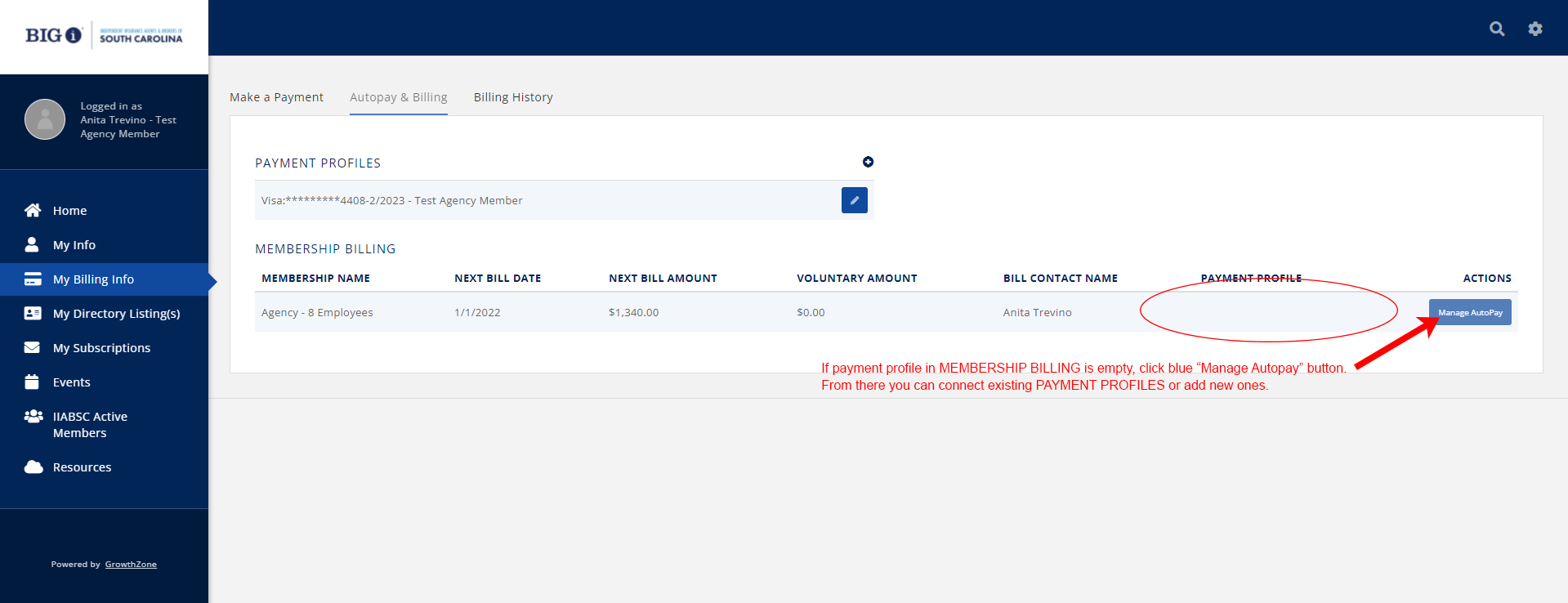
To verify the payment method of your scheduled payment, go to “Autopay & Billing” tab in the “My Billing Info” section on lefthand side menu.
Existing payment profiles are listed at the top of the page (you can add new one using “+” button), and the payment profile that has been selected to pay your membership billing will be listed under the “MEMBERSHIP BILLING” heading.
To update which payment profile should be charged, click blue Manage Autopay button. Make sure that “All Membership Items” are selected under AUTOMATIC PAYMENTS and select the payment profile to be charged from the Payment Profiles dropdown.
Click blue “Done” button to save.
HOW TO APPLY PAYMENT PROFILE TO FUTURE DUES RENEWAL INVOICES
View instructions on how to login to member InfoHub. Your Big I member login must have admin permissions to view agency billing information.
If you want to mark an existing payment profile to pay future member dues payments, access membership info from the “Autopay & Billing” tab of the “My Billing Info” section and click the blue “Manage Autopay” button next to your membership information in the Membership Billing list. Contact Director of Member Services if Manage Autopay field has no Action button with it.
Select the Payment Profile from the list and select “All membership items” option. Next Bill Date will be listed in the Membership Items.
Save and apply by clicking the blue “Done” button.